Turn Your Author Page Into a Sales Machine on KDP (Step-by-Step)

You did the hard part. You wrote the book, wrestled with the cover, survived the KDP upload screen, and hit publish.
So why does clicking your own name on Amazon lead nowhere, or worse, to a bare page with a gray silhouette where your photo should be?
That blank space is costing you readers and sales every single day.
Your Amazon Author Page is the one of the few pieces of Amazon real estate you fully control, it's completely free, and most authors either ignore it or set it up halfway and forget it exists. This guide walks you through the whole thing from scratch: how to set up Amazon Author Central, claim and manage your books, customize your profile, read the data Amazon hands you, and keep it all working as a quiet little sales engine long after launch day.
Let's build it.
First, What Is Amazon Author Central (and Why It's Not KDP)
Here's a point of confusion worth clearing up immediately, because it trips up nearly every new author.
KDP (Kindle Direct Publishing) is where you publish and manage your books - uploads, pricing, royalties, manuscript files.
Amazon Author Central is where you manage you. Your public author identity, your bio, your photo, your bibliography, and the data on how your titles are performing. They use the same login, but they're two different dashboards doing two different jobs.
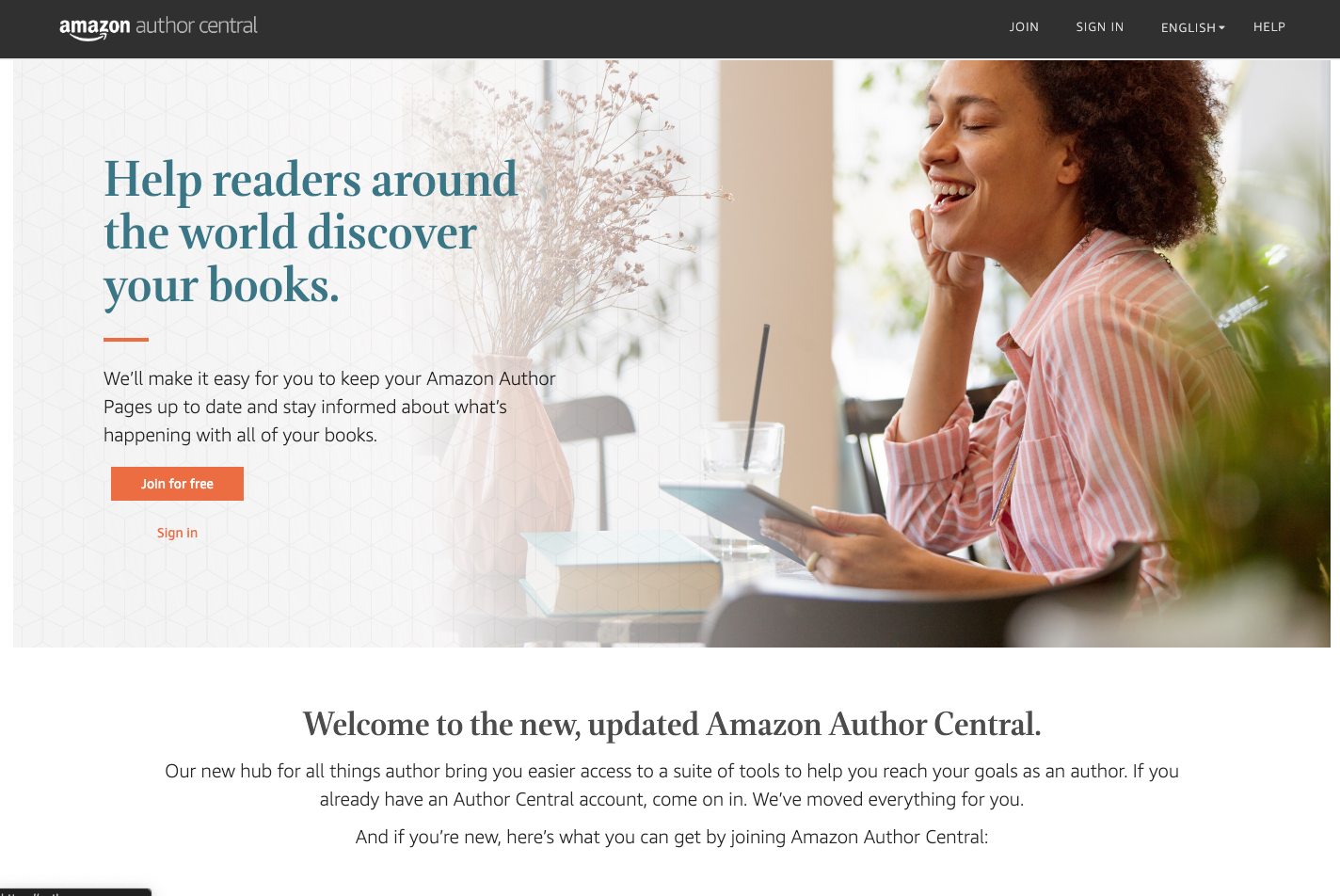
Author Central is the platform that creates your Amazon Author Page: the page a reader lands on when they click your name on any book's detail page.
Just like A+ content, a complete, polished page does real work for you. It groups all your titles in one place, signals legitimacy, lets readers follow you for new releases, and gives you a single link to point your website, newsletter, and social media toward.
It's free, there's no subscription, and if you've already published through KDP, you're halfway there.
Step 1: Set Up Your Author Central Account
You need at least one book live and for sale on Amazon before you can create an account. Once that's true, here's the process:
Go to author.amazon.com (authorcentral.amazon.com also works) and click "Join for free."
Sign in with your existing Amazon KDP credentials. Do not create a brand-new account. If you genuinely don't have an Amazon account, choose "I am a new customer" and fill in the extra details.
Read and accept the Terms and Conditions.
Shortcut for KDP authors: You can also reach Author Central from inside KDP. Go to the Marketing page, find the Author Central section, pick your marketplace from the drop-down, and click Manage author page.
Step 2: Claiming & Managing Your Books
Once you're verified, the Books tab is where you make sure every title you've ever written actually shows up on your page in every format (Kindle, Paperback, Hardcover). It directly affects discoverability.
Add and claim your titles
On the Books tab, scroll to the bottom of your bibliography and click "Add a Book." Search by author name, title, ISBN, or ASIN, find the book, and click "This is my book." If Amazon already lists you as the author, you're done. If your name is misspelled or you're not listed as a contributor at all, you'll need to work through Amazon's troubleshooting flow to get properly linked.
Link every edition
This is the big one.
Each format including Kindle ebook, paperback, hardcover, audiobook can exist as a separate listing. If only your Kindle edition is claimed, readers who prefer print may never find your paperback, and your reviews and ranking get split across listings instead of pooling together. Go through and claim all versions and past editions so they live under one author identity.
If you write under a pen name
Amazon creates a separate Author Page for each pen name, and it verifies pen-name ownership the same way (often by checking with your publisher). You can run up to three pen-name pages from one account, and, importantly, Amazon keeps them completely unlinked publicly, so your thriller pseudonym and your romance pseudonym never bump into each other.
You switch between them using the menu in the upper-right corner of Author Central.
Adding more books under another pen name isn't obvious. You'll need to first go to https://author.amazon.com/books then click "Add Book" (even if you are currently under an unrelated pen name), then find the title, add the book, confirm the name, click "Add Pen Name", and then wait a few minutes for the books under that new pen name to appear in Author Central.
If you co-authored a book
There are no shared author pages. Each co-author claims the same book independently under their own account. When it's done right, every author's name on the detail page becomes a clickable link to their own page.
If only one name is hyperlinked, the other co-author is leaving marketing potential on the table, so make sure each contributor claims the title.
Step 3: Customizing Your Author Profile
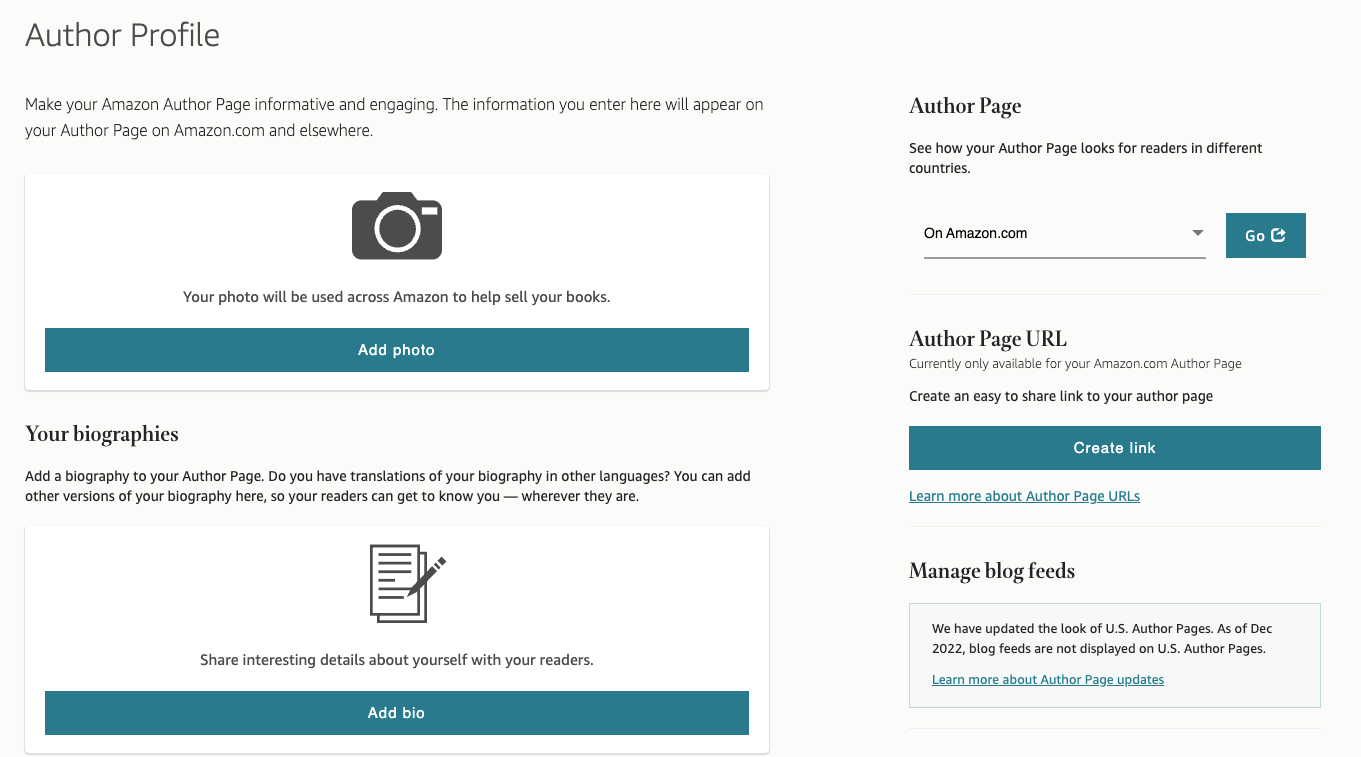
The Profile tab is where a blank page becomes a real one. Three elements do most of the heavy lifting.
Write a bio that sells (within Amazon's rules)
Click into Your Biography and add your author bio. A few constraints to know going in:
It must be at least 100 characters, and it has to be plain text — no bold, italics, or HTML.
Amazon won't render clickable links in the bio. You can still type out your website or social handles; readers just have to copy and paste them.
Write it in the third person, lead with what makes you credible (awards, sales milestones, relevant background), and weave in the kind of language and themes your ideal reader is searching for.
Draft it in a separate document first so you always have a clean copy, then paste it in, preview, and save.
Add a professional photo
Readers buy from people, not silhouettes. Upload a square image at least 300 x 300 pixels. On the Profile tab, click Upload New Photo (or the pencil icon to swap an existing one), choose your file, and publish.
A clear, friendly, professional headshot beats a blurry vacation crop every time.
Confirm your +Follow button is on
The yellow +Follow button appears on your Author Page and book detail pages by default. It's one of Amazon's most underrated free tools: when a reader follows you, Amazon can notify them by email about your new releases and pre-orders, and your future titles get surfaced to them as they browse. You don't manage followers directly, but you should actively drive people to that button from your newsletter, website, and social channels.
A book has to be claimed to your account to qualify for Follow notifications.
Set a Short Custom URL
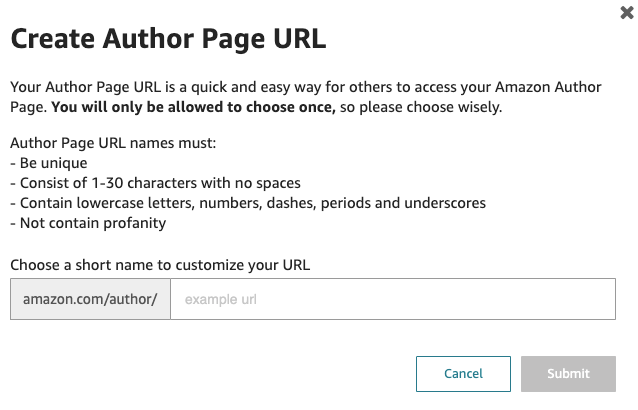
Author Central lets you pick your own custom "vanity" URL — something clean like amazon.com/author/your-name.
If you want full control over how the link looks in your newsletter or bio, route it through a link-branding service (Rebrandly, Short.io, and Cuttly all have free tiers). Note that link branding is different from link shortening, shortening just gives you a random short string, while branding gives you a clean, readable, on-brand link.
Don't expect the old blog and video widgets
Older guides still mention pulling in an RSS blog feed or embedding a video bio or book trailer. Amazon has steadily retired those media features, so don't build your strategy around them:
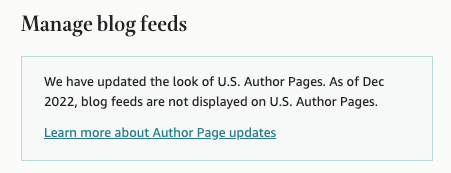
Put your energy into the elements that still pull weight: bio, photo, a complete bibliography, and the Follow button.
Step 4: Leveraging the Data Available to You
Here's the part most authors never open — and it's genuinely useful. Plus these are more metrics that Amazon DOESN'T share in your KDP reports.
Head to the Reports & Marketing tab (you'll also see it at author.amazon.com/marketingAndReports). It surfaces several things in one place.
Amazon Best Sellers Rank and Author Rank. You can see how your individual titles rank and how you rank as an author within your categories. Treat these as directional signals. A rank that suddenly jumps usually means a recent sale or that a promotion is working rather than precise scoreboard numbers.
Scrivy does provide BSR tracking at a much more granular level than what Amazon does provide in these reports.
Circana BookScan data (US, print only). Author Central gives you free access to a limited slice of Circana BookScan. The industry's point-of-sale tracking service (formerly Nielsen, then NPD, rebranded Circana in 2023). It covers roughly 85% of US trade print sales and shows the geography of where your physical books are selling. Two important caveats: it tracks print only (no ebooks or audiobooks) and it's a US feature. If you're a KDP author, your KDP dashboard gives you faster, fuller sales data but for traditionally published authors who otherwise fly blind, this is often the closest thing to near-real-time numbers you'll get.
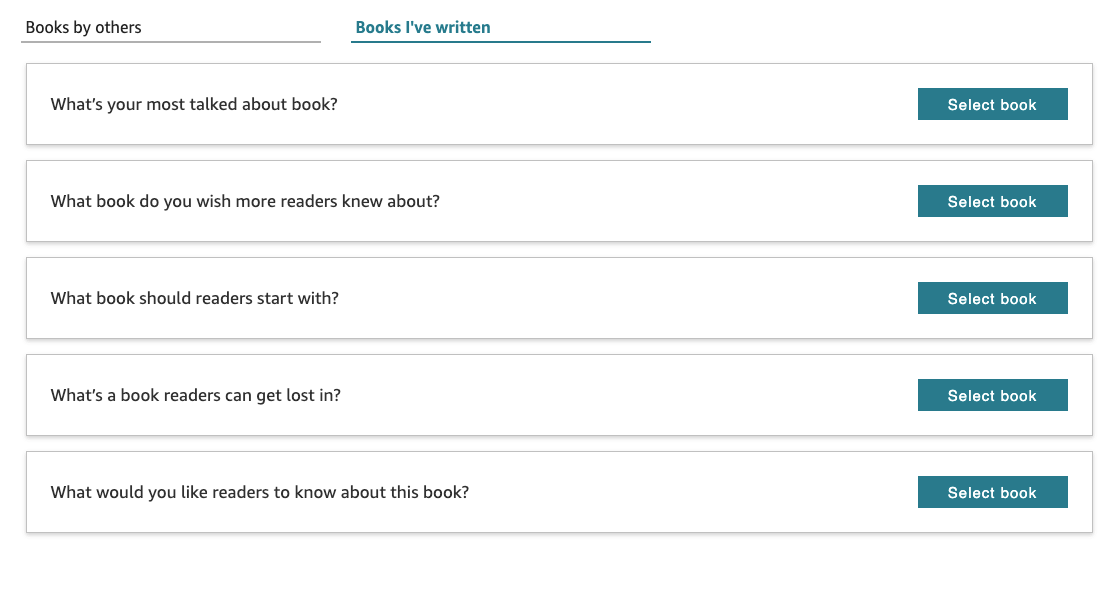
Book Recommendations. This is huge if you want to cross-sell books to your readers. Under the Books I've Written tab, you have several options where you can showcase a new or relevant book:
Customer reviews, all in one feed. Author Central aggregates reviews across all your claimed titles, sortable and filterable by book. If you have more than one title, this beats clicking through individual product pages, and it's the fastest way to gauge whether a call-to-action for reviews is landing.
Your follower count. You can see how many readers have hit that +Follow button a clean way to measure whether your off-Amazon marketing is actually converting people into subscribers to your releases.
Amazon Advertising. The same tab links you straight into the Amazon Ads dashboard if and when you're ready to run campaigns on your titles.
The smart move is to glance at this data after you do something — a price promo, a newsletter blast, a social push — and watch what moves. That feedback loop tells you what's worth repeating.
Step 5: Editing, Maintaining, and Going Global
Setting up the page once isn't the job. Keeping it current is what turns it into a sales machine.
Edit anytime. Everything above is editable whenever you like. New book out? Add it on the Books tab. New headshot, an award, a sharper bio angle? Update the Profile tab. Set a recurring reminder to review the whole page every month or two so it always reflects your latest catalog and branding.
Use editorial reviews — the most underused sales lever. On a book's detail page you can add an Editorial Reviews section (a US/Amazon.com feature) with quotes from reviewers, publications, or respected authors in your niche. This is powerful social proof: a blurb from a recognizable name with their credential attached, like "USA Today bestselling author" lends instant legitimacy.
Add it via Books → select the title and edition → Edit book details → add the review. Amazon restricts formatting and prohibits things like links and promotional language, so keep it clean.
Claim your international pages. Amazon has author pages across many marketplaces. A handful let you build and customize a page directly notably the UK (.co.uk), Germany (.de), France (.fr), and Japan (.co.jp) and you set those up by repeating this process on each site. Others (Canada, Australia, India, Italy, Spain, Mexico, Brazil, and more) generate pages automatically from your US profile as long as your books are sold there, so updating your main page cascades to them. If most of your sales are international, completing those pages is found money.
Troubleshooting: When Things Don't Show Up
A few common snags and what they usually mean:
Your book isn't appearing or your name isn't linked. Most often this is an ASIN that isn't correctly associated, or a sync that simply hasn't finished. Confirm you've claimed the right title and every edition, then give Amazon time to update across the site, it isn't instant.
Verification is dragging on. Make sure the name on your account matches your published name exactly. Don't build a launch timeline that assumes same-day approval; plan for the three-to-seven-day window.
Your name is misspelled on a listing. This is a metadata fix on the listing itself; work through Author Central's help flow to get it corrected and re-linked.
Recent reviews aren't in your feed yet. New reviews can take a day or two to surface in Author Central. That's normal.
Frequently Asked Questions
Do I need Author Central if I already have KDP? Yes. KDP publishes and manages your books; Author Central manages your public author identity, your Author Page, and your performance data. They're separate tools that happen to share a login.
Is Amazon Author Central free? Completely. No fee, no subscription.
Can I have more than one author page for different pen names? Yes, up to three pen-name pages from a single account, and Amazon keeps them publicly unlinked.
How long does verification take? Usually quick, but it can run three to seven days if Amazon checks with a publisher to confirm your identity.
Now Go Build Your Storefront
Your Author Page is the rare marketing asset that's free, fast to set up, and entirely in your control. Claim every edition of every book, write a bio that earns trust, add a real photo, turn on Follow, and check your data after each promotion so you know what's working.
Then do the one thing most authors skip: come back. Update it as your catalog grows, keep your international pages alive, and let editorial reviews and the Follow button do their quiet work between launches.
Your next step: open author.amazon.com right now, claim any book or edition that's missing, and fix the single weakest part of your page today. Then put it on your calendar to review again in 30 days.
More in KDP
The Self-Published Author’s KDP Launch Day Checklist (2026)
The complete KDP launch checklist, drawn from real self-published author launch reports. 81 steps across 7 phases, interactive progress tracking, and a free printable PDF.
6 min readReadHow to Set Up Amazon A+ Content for Your Book in Just a Few Minutes
Learn how to add Amazon A+ Content to your KDP listings — including comparison tables and image modules — and where to find a free tool that cuts the setup time significantly.
4 min readReadHow to Get Around the Amazon KDP Upload Limit of 10
Amazon's 10-book upload limit applies per format, meaning authors can potentially publish up to 30 titles weekly by strategically using Kindle eBook, paperback, and hardcover slots as separate product lines.
2 min readRead