How to Set Up Amazon A+ Content for Your Book in Just a Few Minutes

If you don't have A+ content set up for your book, you could be leaving hundreds, even thousands, of dollars in sales on the table. A+ content lets you go beyond a plain text description and turn your product page into a real brand experience: images, comparison tables, story-driven layout
s, and the kind of polish that nudges browsers into buyers.
The good news is that adding it to your listing doesn't take long. In this guide, I'll walk through what A+ content is, how to set it up inside KDP, a free shortcut that makes building it dramatically faster, and how to measure whether it's actually moving the needle.
What A+ Content Actually Is
Think of A+ content as a glorified product description. Instead of one block of text, you get a layout of modules (hero images, image-with-text overlays, comparison charts, and more) that tell the story of your book and your brand. Amazon publishes official examples that show what's possible.
The two pieces that matter most for authors:
Visual storytelling. A picture-rich layout is far more captivating than a wall of text, especially for readers deciding whether to commit to a new author.
Comparison modules. If you have a series, you can place your books side-by-side in a comparison table. This is one of the highest-leverage things you can do to accelerate sales of related titles.
Where to Find A+ Content in KDP
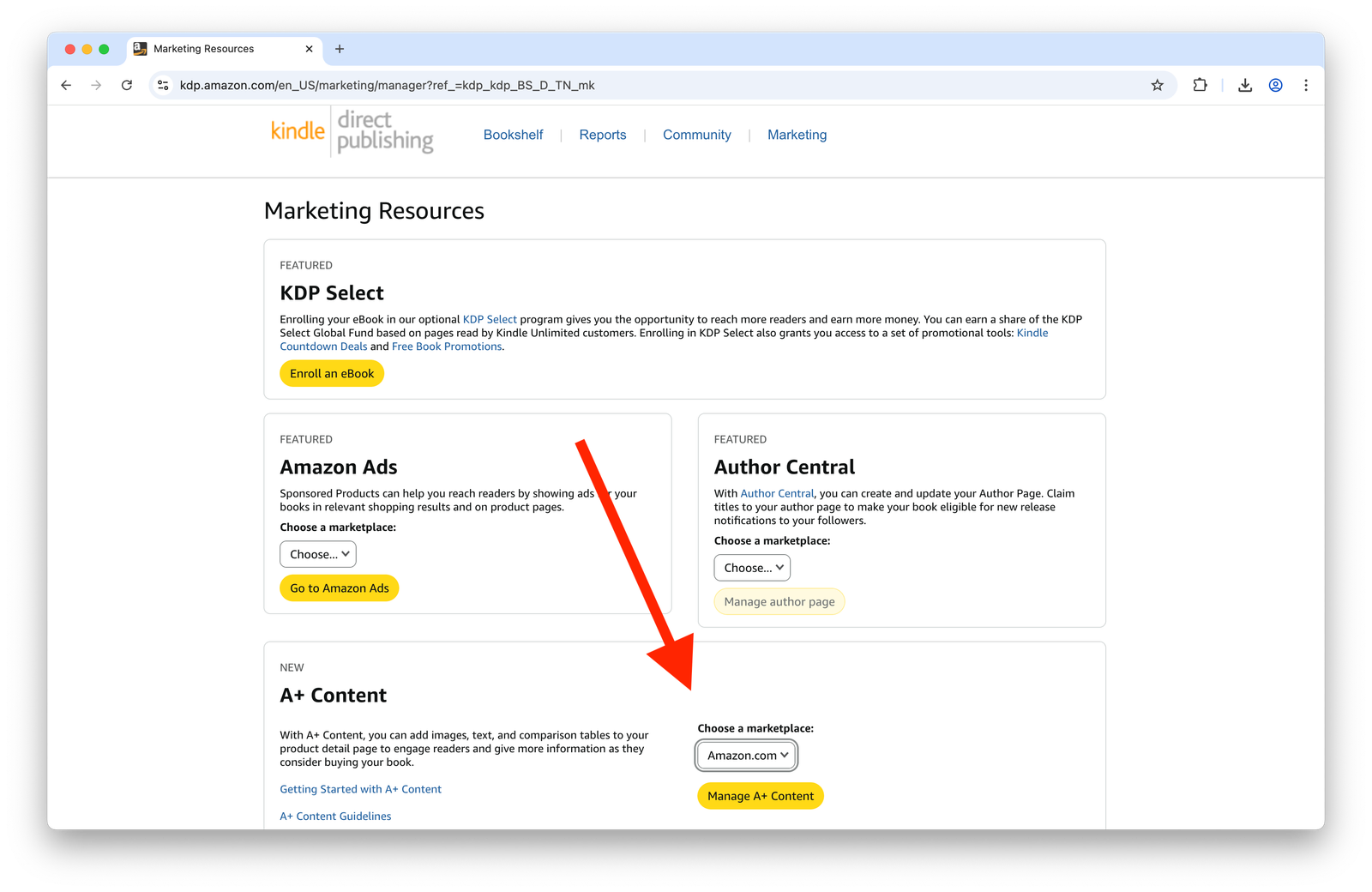
From your KDP dashboard, go to Marketing, scroll down to A+ Content, and choose the marketplace you're publishing in. For this walkthrough I'm using Amazon.com. Then click Manage A+ Content:
Creating Your First A+ Content Page
Click Create A+ Content and give it a name. One thing worth deciding up front: A+ content can be applied either to a single book or to an entire series. If you're publishing a series, building one set of A+ content with consistent branding and applying it across all the ASINs is usually the better move. For this example I'll name it "Sample Series."
You'll land in the editor with a preview pane on the side. From here you can drop in modules: standard image overlays, hero images, image-with-text combos, and the all-important comparison chart.
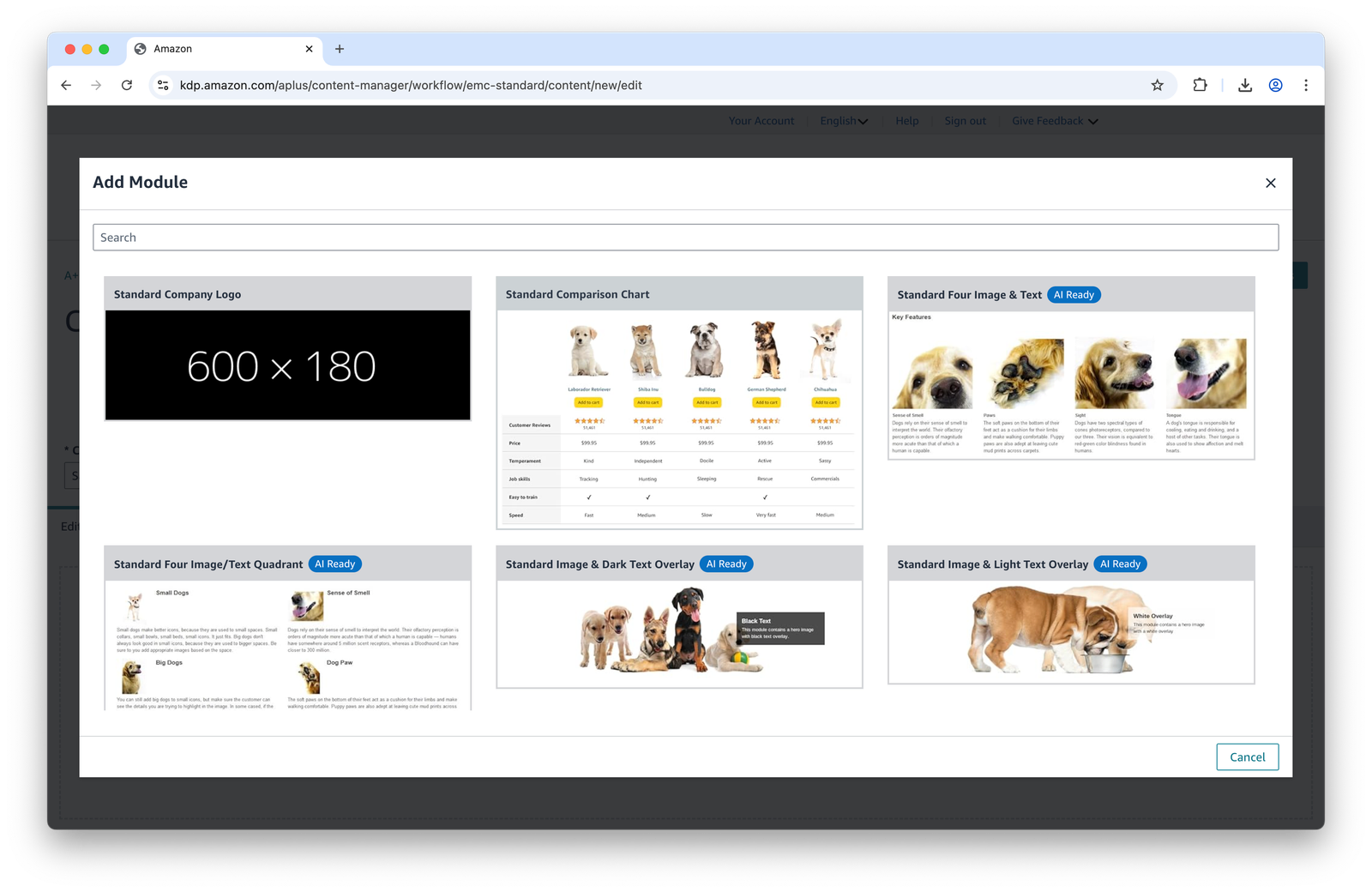
For a quick build, a solid starting layout is:
A standard image overlay at the top.
Four supporting images.
A comparison table at the bottom.
Each module has its own text fields. The comparison table is where you'll add ASINs: type one in and Amazon pulls the cover automatically. You can also add features (page count, genre, age range, whatever distinguishes the books in your series) so readers can compare at a glance.
When the layout is finished, apply it to as many ASINs in your library as you want, then publish. Amazon usually has it live within 24 hours, often within an hour or two.
A Faster Way: Build A+ Content with a Free Tool
If you have several books, building A+ content from scratch inside Amazon's editor for each one gets tedious fast. There's a free tool (no account needed) that mimics Amazon's A+ content interface exactly (same modules, same field structure, same five-module limit) so you can design everything on the outside and then copy-paste straight into KDP.
The flow looks like this:
Open the tool's A+ content page.
Drag in the modules you want. The available options match Amazon's: standard image, header with text, image with sidebar, three-images-with-text, and so on. Up to five modules total.
Fill in your book information. You can either upload your book or just type the details in.
Click Generate A+ Content.
Copy each section and paste it into the matching module on Amazon.
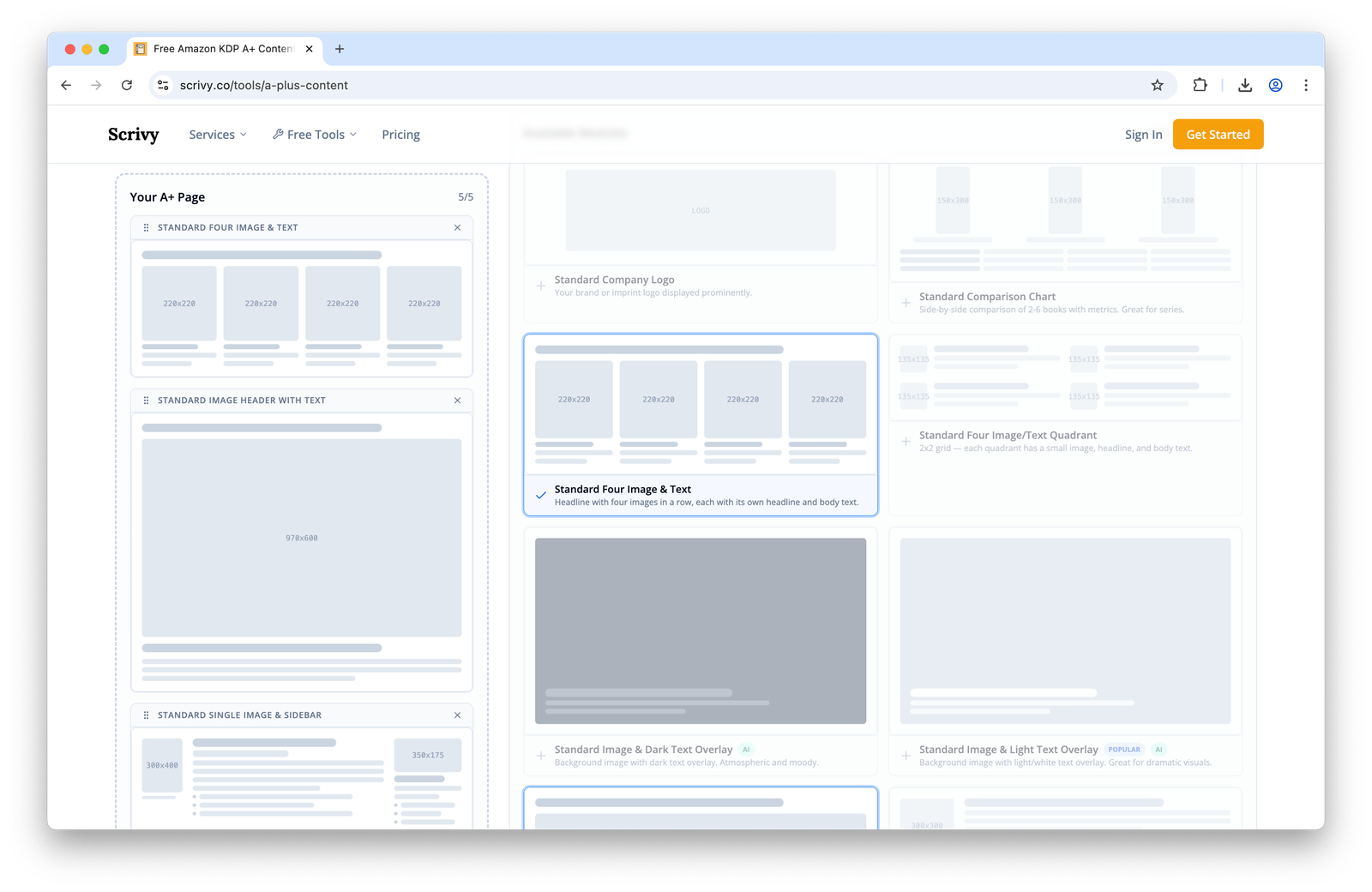
The output covers everything except the images themselves (you'll still drop those into Amazon directly), but the heavy lifting on copy and layout is done.
Where to Get the Images
You have a few options for the visuals:
Roll your own in any design tool you already use.
Canva is free and has plenty of templates that work fine for A+ modules.
Scrivy Pro will generate everything (including images) in only a few clicks.
The right choice depends on how much custom branding you want and how many books you're producing images for.
Measuring Whether A+ Content Is Actually Working
Setting it up is the easy part. The bigger question is whether it's moving sales, and there are two practical ways to check:
Keyword rankings over time. Track where your book ranks for its target keywords before and after publishing A+ content.
Conversion rate. This is the more direct signal. If you're running Amazon Ads, you have access to conversion data and can see whether the same traffic is converting at a higher rate after A+ content goes live.
If you're not running ads, conversion rate is harder to isolate, but ranking improvements over a few weeks are still a useful proxy.
Wrapping Up
A+ content is one of the highest-leverage changes you can make to a KDP listing, especially if you have a series and can take advantage of the comparison modules. The setup takes minutes once you know where to click, and a free design tool can shave off most of the remaining friction.
More in KDP
The Self-Published Author’s KDP Launch Day Checklist (2026)
The complete KDP launch checklist, drawn from real self-published author launch reports. 81 steps across 7 phases, interactive progress tracking, and a free printable PDF.
6 min readReadHow to Get Around the Amazon KDP Upload Limit of 10
Amazon's 10-book upload limit applies per format, meaning authors can potentially publish up to 30 titles weekly by strategically using Kindle eBook, paperback, and hardcover slots as separate product lines.
2 min readReadTurn Your Author Page Into a Sales Machine on KDP (Step-by-Step)
Your Amazon Author Central page is free real estate you fully control — this guide walks through setup, claiming every edition of your books, and building a profile that keeps working for you after launch.
10 min readRead